
Home / Troubleshooting / IPTV Not Working: Troubleshooting Guide
Troubleshooting · TROUBLESHOOTING
IPTV Not Working: Troubleshooting Guide
By TVbrick · Updated October 31, 2026
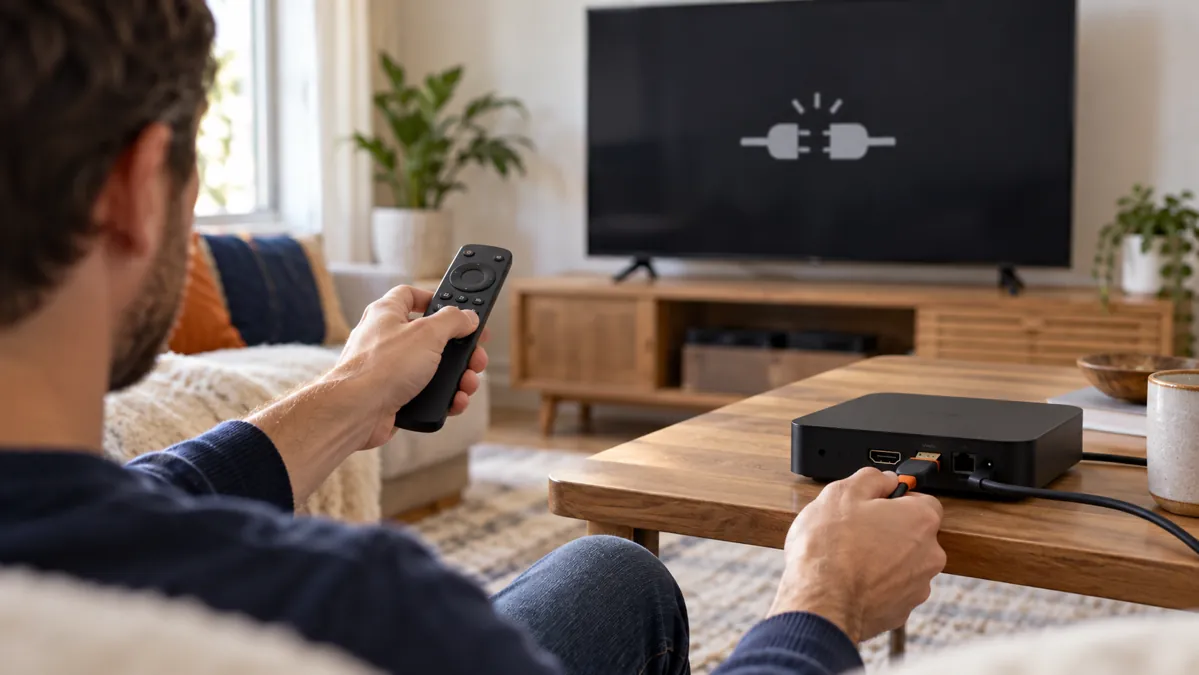
If IPTV is not working, first identify what has stopped: the app, the login, the channel list, the video or only the program guide. Those are different problems. Check the connection, confirm that the account is active and test one stream on one device before reinstalling anything.
This troubleshooting guide helps you choose the next useful check without deleting a working setup. If video starts but repeatedly pauses, go directly to our IPTV buffering guide. The steps here focus on a service or app that will not open, load or play at all.
Jump to: Identify the symptom · Check the connection · Login and account · Channels will not play · App problems · Support checklist
Identify the symptom before choosing a fix
- The app will not open: focus on the app and device, not the channel list.
- The app opens but rejects your login: check the account details, login method and service status.
- You can log in but see no channels: check the selected playlist, category filters and account package.
- Channels appear but video will not start: compare another feed, connection and supported player.
- Video works but listings are missing: this is a guide-data problem; use the EPG troubleshooting guide.
Write down the exact error before dismissing it. “Failed to authorize,” a blank list and a black video window are not interchangeable. If the issue began after an update or a settings change, include that detail in your notes.
Check whether the device can get online
Open another app or a website on the same device if possible. A Wi-Fi icon means the device is connected to a wireless network; it does not establish that every online service is reachable. If unrelated apps also fail, investigate the local connection first.
Confirm that the device is on your intended home network. Restart the affected device, then test again. If the whole household is offline, follow your internet provider’s instructions for the modem or router. Restarting equipment is different from pressing its factory-reset button.
On Google TV, Google’s official troubleshooting instructions explain how to check the network, update the system and restart the device. Use instructions for your exact platform; menus on Samsung, LG, Fire TV and Apple TV are different.
When only the TV has trouble, compare Ethernet with Wi-Fi where supported. If you suspect insufficient capacity rather than a complete connection failure, check how to test internet speed for IPTV. Do not buy a faster package merely because one channel will not load.
Check the login method, account and connection limit
Make sure you are using the method supplied for your account. A playlist URL belongs in a playlist field; a server address, username and password belong in the corresponding login fields. A third-party player activation code is not necessarily your television-service login.
Compare the details with the original private setup message. Look for accidental spaces, missing characters and a server address copied into the wrong field. Do not change a supplied address or its protocol by guesswork. If the details no longer work, ask support to confirm the current setup.
Check whether the subscription or trial has expired, whether a renewal has been activated and whether another device is already using the allowed connection. Close the other stream before testing again. Purchasing the player app does not automatically renew the content service.
For TVbrick, the IPTV subscription plans describe the available durations and device options. Use them to confirm the allowance you need, not as a reason to purchase another plan before support has checked the existing account.
If channels load but video will not start
Choose two or three different channels and, if available, an on-demand item. Keep the app and device unchanged. One failing channel suggests a narrower issue than every feed failing; record both a working example and a failing example for support.
If the same account is permitted on another compatible device, stop the first stream and make a sequential comparison. Success on the second device gives you a reason to investigate the first player or its connection. It does not prove exactly which component failed.
Check whether the selected feed requires a video or audio format your device and app support. Use an alternative quality offered by the provider as a comparison. Avoid installing unknown codec packs or player copies from unrelated download sites. The installation guide for your device is a better starting point for confirming the setup.
If only the sound is missing, check mute, output selection and another channel before changing the entire account. If the whole television says “No signal” and you cannot see the streaming device’s menus, check the TV input and physical connection first; that message may not come from the IPTV app at all.
If the player crashes, freezes or will not open
Restart the app and check for updates through its official source. Also check the device’s available storage and system updates. Keep the device powered during an update and follow the manufacturer’s instructions.
On supported Google TV devices, clearing an app’s cache is a separate action from clearing its data. TCL’s app troubleshooting guide distinguishes those steps and notes that clearing data can sign you out or reset settings. Menu names depend on the model and software version.
Before clearing data or reinstalling, confirm that you can recover your account details and any separate player activation. Back up app settings if the player provides a supported backup feature. A factory reset is a much larger step and should not be your first response to one malfunctioning app.
When a network comparison is useful
If an allowed second connection is available, a short comparison can help identify whether the problem follows the home network. For example, a permitted mobile hotspot test may be useful, but check its data allowance and stop other account sessions first.
If a VPN is already enabled, compare with and without it only where the service’s terms permit. A changed result is a troubleshooting clue, not proof that an internet provider intentionally blocked the service. Do not disable security protections or repeatedly change DNS and router settings without a reason.
What to send support before replacing the service
Ask your IPTV provider to check the account and affected feeds. A concise report is easier to investigate than repeated messages saying that everything is broken:
- Device model, operating system and player version.
- The exact error, or a description of what happens after you select a channel.
- The time and time zone when the issue occurred.
- Whether login, channel lists and the guide load successfully.
- Which comparison worked: another channel, device or permitted connection.
Remove passwords and private playlist URLs from screenshots. Send account identifiers only through the provider’s established private support channel. Ask whether there is a known issue and what next test would distinguish it from a local setup problem.
If you are considering a new service after resolving your setup, use an IPTV free trial on the device you intend to keep. A trial helps you evaluate that setup; it does not repair an unrelated device fault or guarantee future availability.
Frequently asked questions
Why is IPTV not working when my internet works?
A working connection does not confirm that the account, server address, player and selected feed are all working. Identify whether the failure happens at login, while loading the list or when starting video, then test that part of the setup.
Why can I see channels but not watch them?
A loaded channel list and successful video playback are separate checks. Try another feed, confirm the connection allowance and compare a supported device sequentially. Report whether every channel fails or only particular ones.
Does paying for a player activate my IPTV subscription?
Not necessarily. A player license and a television-service subscription can be separate purchases. Check which company supplied each payment confirmation and what it covers.
Should I factory-reset my TV?
Start with narrower checks such as restarting the app, checking the account and testing another feed. A factory reset erases settings and may require a complete setup, so use the manufacturer’s guidance and keep recovery details first.
Can missing EPG data stop a channel from playing?
Missing listings alone do not necessarily stop the stream. Test playback independently. If video works and only schedules are blank, investigate the guide source and channel mapping rather than replacing the subscription.
What should I do if IPTV stopped after renewal?
Ask support to confirm that the renewal is applied to the intended account and whether any setup details changed. Do not repeatedly buy another subscription or overwrite working credentials without confirmation.